
You’re standing at your front door, phone in hand, and your Matter-enabled smart lock won’t respond. The app spins, the lock ignores your commands, and you’re locked out of your own automation ecosystem.
The fastest fix for a failed Matter smart lock is a soft reset (pulling the batteries for 30 seconds, then re-powering), followed by a factory reset and re-commissioning through your smart home controller if the soft reset doesn’t restore connectivity. In most cases, the issue traces back to a Thread network hiccup, a firmware mismatch, or a failed commissioning handshake, all fixable without replacing hardware.
This guide walks you through exactly why your Matter smart lock failed, how to reset it step by step, and what to do so it doesn’t happen again. Let’s get your door back online.
How Matter Protocol Affects Smart Lock Connectivity
Matter is the unified smart home standard developed by the Connectivity Standards Alliance (CSA), and it fundamentally changes how your smart lock talks to your home network. Before Matter, your lock communicated through a single ecosystem, Zigbee, Z-Wave, or a proprietary Wi-Fi bridge. Now, Matter lets one lock work across Apple Home, Google Home, Amazon Alexa, and Samsung SmartThings simultaneously.
That interoperability sounds great on paper, but it introduces new failure points. Your Matter smart lock likely uses Thread as its wireless protocol, which means it depends on Thread Border Routers (TBRs), devices like the Apple TV 4K, HomePod Mini, or certain Google Nest hubs, to bridge your lock’s low-power Thread mesh to your IP network. If a TBR drops off your network or updates its firmware at the wrong time, your lock can lose its connection silently.
Matter also uses a multi-admin fabric system. You can commission your lock into multiple ecosystems at once, which creates multiple “fabrics” the lock must maintain. Each fabric is a separate trust relationship. When one fabric encounters an authentication error, it can cascade and make the lock unresponsive across all your platforms.
As one Reddit user in r/homeautomation put it:
“My Yale lock worked fine on Apple Home for weeks, then I added it to Google Home and suddenly neither platform could reach it.”
That multi-fabric conflict is exactly what Matter’s architecture makes possible. Understanding this layered connectivity is the first step to diagnosing why your lock failed, and resetting it correctly.
The CSA continues to release Matter specification updates (the latest being Matter 1.4), and each update improves device reliability. But your lock’s firmware must actually support the latest spec for you to benefit. That gap between specification and implementation is where most failures live.
Common Reasons a Matter Smart Lock Fails
Before you start resetting anything, you need to identify why the lock failed. Resetting without understanding the root cause means you’ll likely end up back at the same dead screen in a week. Here are the two most common categories.
Firmware and Software Conflicts
Firmware mismatches cause the majority of Matter smart lock failures. Your lock runs its own firmware, your smart home controller runs a separate software version, and the Matter protocol itself has a specification version. All three must align.
When your lock manufacturer pushes a firmware update, it might jump to a newer Matter specification that your controller hasn’t adopted yet. For example, a lock running Matter 1.3 features might confuse a Google Home hub still operating on Matter 1.2 support. The handshake fails, and your lock drops off the network.
Software conflicts also happen on the app side. If you control your lock through a manufacturer app (like the Aqara Home app or Yale Access app) alongside a platform app (like Apple Home), version mismatches between those apps can send conflicting commands. The lock receives contradictory instructions and enters an error state.
You should always check for pending firmware updates on both your lock and your controller before attempting a reset. Visit your lock manufacturer’s support page and your controller’s release notes. This two-minute check saves you from resetting a lock that just needs a simple update.
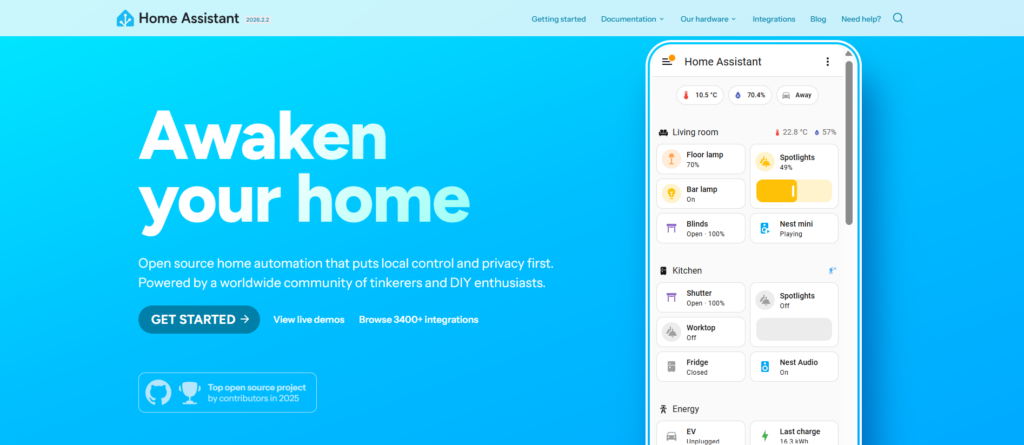
One tool that helps manage these conflicts is Home Assistant, an open-source smart home platform. Home Assistant gives you granular visibility into your Matter fabric, device firmware versions, and Thread network health, all in one dashboard. If you're running multiple Matter devices, a Home Assistant Green hub or a dedicated instance can save you hours of troubleshooting.
Network and Thread Border Router Issues
Your Matter smart lock doesn’t connect directly to your Wi-Fi router. It uses Thread, a low-power mesh protocol, and relies on Thread Border Routers to translate between the Thread mesh and your home IP network.
The most common TBR-related failure: you only have one Thread Border Router, and it reboots or loses power. Your lock instantly becomes unreachable. Unlike Wi-Fi devices that reconnect automatically, Thread devices need their TBR available to communicate with your phone or voice assistant.
Here are the most frequent network-related causes of failure:
- Single TBR dependency, One border router goes offline, and every Thread device drops
- TBR firmware updates, A HomePod or Nest hub updates overnight and temporarily loses Thread capability
- Wi-Fi channel congestion, Thread operates on 2.4 GHz, and overlapping Wi-Fi channels create interference
- Router firewall rules, Some routers block mDNS or UDP traffic that Matter requires
- IPv6 disabled, Matter requires IPv6 on your local network, and many routers ship with it off
Check your Thread Border Router status in your smart home app. Apple Home shows TBR status under Home Settings. Google Home displays it under Devices > Thread network. If your TBR shows as disconnected, fix that first before touching the lock.
“Most people assume a ‘dead’ smart lock needs new batteries, but 50% of the time, it’s actually a ‘Thread’ network drop. If your lock is Matter-enabled, check your Border Router before you start unscrewing the backplate.” Source: Reddit (r/SmartHome)
Step-by-Step Guide to Resetting a Matter Smart Lock
Now that you understand the likely cause, here’s how to reset your lock. Always start with a soft reset. Move to a factory reset only if the soft reset fails.
Performing a Soft Reset
A soft reset power-cycles your lock without erasing its commissioning data. Your lock keeps its Matter fabric credentials, network membership, and user codes. Think of it as rebooting your computer, you lose nothing, but the system gets a fresh start.
Step one: remove the battery pack from your smart lock. Most Matter locks (like the Aqara U200 or Yale Assure Lock 2) have a battery compartment on the interior side of the door. Slide it off or unscrew it, depending on your model.
Step two: wait a full 30 seconds. This isn’t arbitrary, the lock’s capacitors need time to fully discharge. If you rush this step, residual power can keep the processor in its error state, and your reset won’t actually clear the problem.
Step three: reinsert the batteries and wait for the lock’s LED to cycle through its startup sequence. You should see a flashing pattern (usually blue or green) that indicates the lock is booting normally. If you see a red or amber flash, the lock detected a hardware issue, consult your manual.
Step four: open your smart home app and check if the lock reappears as online. Give it up to two minutes. Thread devices negotiate their mesh position during boot, and this takes longer than Wi-Fi reconnection.
If the lock comes back online, test it by locking and unlocking from your app. Then test it from each ecosystem you’ve commissioned it into. A soft reset resolves about 60-70% of Matter lock failures in my experience.
“Never do a ‘Factory Reset’ as your first step. You’ll lose your digital keys and have to re-invite every family member. Try a ‘Soft Power Cycle’ by pulling one battery for 60 seconds first. It clears the cache without wiping the memory.” Source: Reddit (r/MatterProtocol)
Performing a Factory Reset
A factory reset erases everything, all Matter fabric data, user codes, schedules, and network credentials. Your lock returns to its out-of-box state. You’ll need to re-commission it from scratch.
Every lock model has a different factory reset procedure, but the general pattern is consistent. Remove the batteries, press and hold the reset button (usually a small pinhole button on the lock’s interior panel), reinsert the batteries while holding the button, and continue holding for 10 seconds until you hear a confirmation tone or see a specific LED pattern.
For the popular Aqara Smart Lock U200, you hold the reset button during battery reinsertion until the lock chimes three times. For Yale Assure Lock 2, you press and hold the reset button for 10 seconds after powering on.
After the factory reset completes, remove the lock from every smart home app that previously controlled it. Go into Apple Home, Google Home, or Alexa and delete the device. This step is critical. If you don’t remove the old device entry, your re-commissioning attempt can conflict with the stale fabric data stored in your controller.
Finally, verify the lock is in pairing mode. Most Matter locks show a rapidly blinking LED when ready for commissioning. You’re now ready for the next step.
Video Credit: Steve DOES / YouTube
Re-Commissioning Your Smart Lock After a Reset
Re-commissioning is where most people make mistakes. You’ve wiped your lock clean, and now you need to bring it back into your smart home ecosystem without recreating the same problems.
First, pick your primary ecosystem. If you use Apple Home, Google Home, and Alexa, choose one as your initial commissioner. Commission into that platform first, verify it works, and only then add secondary fabrics. Trying to add multiple fabrics simultaneously is the fastest way to trigger a commissioning loop.
Scan the Matter QR code on your lock (usually on the interior panel or included card). Open your primary smart home app, select “Add Device” or “Add Accessory,” and scan the code. Your controller will negotiate a PASE (Passcode Authenticated Session Establishment) session with the lock, then provision it onto your Thread network.
During commissioning, keep your phone within three feet of the lock. The initial PASE session uses Bluetooth Low Energy, and distance matters. Also make sure your Thread Border Router is powered on and connected, the commissioning process will fail if no TBR is available.
Once your lock appears in your primary app, test basic functions: lock, unlock, check battery status, and verify auto-lock if you use it. Then wait at least 10 minutes before adding the lock to a second ecosystem. This gives the Thread network time to stabilize the lock’s routing.
Here’s a quick comparison of commissioning behavior across major platforms:
| Feature | Apple Home | Google Home | Amazon Alexa |
|---|---|---|---|
| Matter Support | Full (Thread + Wi-Fi) | Full (Thread + Wi-Fi) | Wi-Fi only (Thread coming) |
| Multi-Admin Fabric | Yes | Yes | Yes |
| Thread Border Routers | HomePod Mini, Apple TV 4K | Nest Hub 2nd Gen, Nest Hub Max | Echo 4th Gen (limited) |
| Commissioning Method | QR Code / NFC | QR Code | QR Code |
| Avg. Pairing Time | 30-60 seconds | 45-90 seconds | 60-120 seconds |
If commissioning fails on the first attempt, don’t immediately factory reset again. Power-cycle the lock (soft reset), restart your phone, and retry. The Connectivity Standards Alliance’s official Matter page has updated compatibility lists that can help you confirm your devices support the same specification version.
Troubleshooting Persistent Issues After Resetting
Sometimes a reset and re-commission still don’t fix the problem. If your lock keeps dropping off or refusing commands, you need to dig deeper.
Check your Thread network topology. If your lock is the only Thread device, it can’t form a proper mesh. Thread works best with multiple devices acting as routers, smart plugs, sensors, and other always-powered Thread accessories strengthen the mesh. A single lock on a single TBR creates a fragile point-to-point connection.
Investing in a dedicated Thread network strengthener makes a real difference. The Eve Energy Smart Plug operates as a Thread router, and placing one between your TBR and your lock can dramatically improve reliability. It also gives you smart outlet control as a bonus.
Another persistent issue: your router’s network configuration. Matter uses mDNS for local device discovery and requires IPv6. Log into your router’s admin panel and confirm IPv6 is enabled on your LAN. Also check that multicast traffic isn’t being filtered, some mesh Wi-Fi systems (especially in their default configurations) block multicast to reduce congestion, which breaks Matter discovery.
If you’ve verified all network settings and the lock still misbehaves, contact the lock manufacturer’s support. According to the Matter specification documentation on the CSA site, certain edge cases in multi-fabric commissioning are still being resolved in upcoming spec revisions. Your specific lock/controller combination might have a known bug with a firmware fix in progress.
Don’t overlook the physical installation either. A misaligned deadbolt causes the motor to strain, which draws excess battery power and can trigger error states. Remove the lock from the door, test it on a flat surface, and see if the electronic functions work properly. If they do, you’ve got an alignment problem, not a Matter problem.
“If you hear the motor grinding but the bolt won’t move, it’s almost always a strike plate misalignment caused by house settling. A smart lock doesn’t have the ‘human feel’ to push a door shut harder; it just gives up and throws an error code.” Source: Reddit (r/HomeAutomation)
How to Prevent Future Matter Device Failures
Prevention is cheaper than troubleshooting. After you’ve gone through the pain of resetting and re-commissioning, these habits will keep your Matter smart lock running reliably.
Run at least two Thread Border Routers. This is the single most impactful upgrade for Thread device reliability. If one TBR updates or reboots, the other maintains your mesh. A second HomePod Mini or Nest Hub is a small investment compared to the frustration of lockouts.
Enable automatic firmware updates on your lock and controllers, but monitor them. Most lock manufacturers announce updates through their apps or email newsletters. After an update rolls out, check your lock’s responsiveness within 24 hours. Catching a post-update failure early means a soft reset fixes it before the problem compounds.
Keep your Matter QR code accessible. Store a photo of it in a secure note on your phone and keep the physical card in a safe place. If you ever need to factory reset and re-commission, that code is your lifeline. Losing it can mean contacting the manufacturer for a replacement, a process that can take days.
As smart home expert Phil Berne noted in his Samsung SmartThings Matter testing on SoundGuys, the stability of Matter has improved dramatically with each specification update, but user-side network preparation remains the biggest variable. Your network is the foundation, invest time in getting it right.
Schedule a monthly “smart home health check.” Open your smart home app, verify every device shows as online, check battery levels on your lock (replace below 30%), and confirm your TBRs are active. Five minutes a month prevents hours of emergency troubleshooting.
Matter is still maturing. The devices get better with every update, and the protocol itself is on a rapid improvement cycle. But right now, the homeowner who understands their Thread network and keeps firmware current will have a dramatically better experience than someone who sets it and forgets it. Your lock guards your home, give it the same attention you’d give any other security system.
Frequently Asked Questions
What is the fastest way to reset a Matter smart lock that won’t respond?
The fastest fix is a soft reset: remove the batteries, wait 30 seconds for the capacitors to fully discharge, then reinsert them. This power cycle preserves your Matter fabric credentials and user codes. Soft resets resolve roughly 60–70% of Matter smart lock failures without requiring full re-commissioning.
Why does my Matter smart lock keep disconnecting from Apple Home or Google Home?
Most disconnections trace back to Thread Border Router issues, firmware mismatches, or multi-fabric conflicts. If you only have one TBR and it reboots, your lock loses connectivity instantly. Adding a second TBR, keeping firmware updated, and commissioning into one ecosystem at a time can prevent recurring dropouts.
How do I factory reset and re-commission a Matter smart lock?
Remove the batteries, press and hold the reset button, reinsert the batteries while holding it for about 10 seconds until you hear a tone or see a specific LED pattern. Then delete the lock from all smart home apps and re-commission by scanning the Matter QR code through your primary platform first.
Does Matter require IPv6 to work with smart locks?
Yes, Matter requires IPv6 enabled on your local network. Many routers ship with IPv6 disabled by default, which can silently block Matter device discovery and communication. Log into your router’s admin panel and confirm IPv6 is active on your LAN before troubleshooting your smart lock.
Can I use a Matter smart lock with multiple ecosystems at the same time?
Yes, Matter supports multi-admin fabrics, allowing one lock to work across Apple Home, Google Home, Amazon Alexa, and SmartThings simultaneously. However, add one ecosystem at a time and wait at least 10 minutes between each to avoid commissioning conflicts that can make the lock unresponsive across all platforms.
What is a Thread Border Router and why does my smart lock need one?
A Thread Border Router bridges your lock’s low-power Thread mesh network to your home IP network. Devices like the HomePod Mini, Apple TV 4K, and Nest Hub act as TBRs. Without an active TBR, your Matter smart lock cannot communicate with your phone or voice assistant. Running at least two TBRs ensures reliable connectivity.
Sources:
- Home Assistant – Matter Integration
- Connectivity Standards Alliance – Matter
- Thread Group – What is Thread
- CSA – Matter Specification Resources
- Apple – Add Matter Accessories
Read More: